AI Sketch to Real Photo Prompts
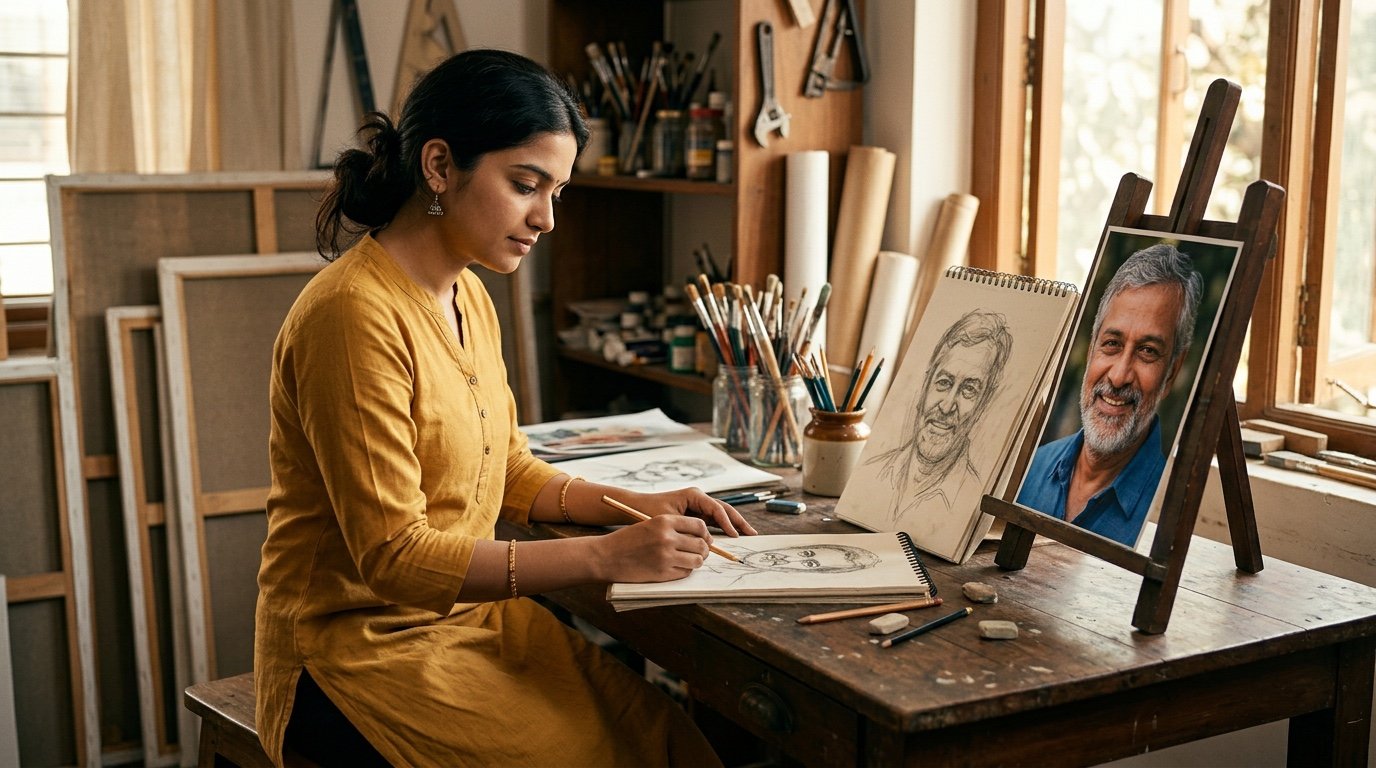 AI PHOTO PROMPTSSKETCH TO REAL PHOTO8 COPY-PASTE PROMPTS
Every one of us has a notebook page somewhere with a half-finished drawing. A face, a street corner, a teacup, a dream house. A good sketch to photo prompt lets you upload that page and see what it might look like if it existed in real life, with real light, real skin or real brick. It feels a little like magic the first time, and then it becomes a habit.
The trick is that the AI needs two things from you: the picture itself, and clear words about what the finished photograph should look like. If you only write 'make this realistic', the tool guesses everything. It may change the pose, add random objects or smooth the face into a stranger. So below we give you eight prompts that tell the tool exactly what to keep and what to add.
These work for a hand drawn sketch to photo conversion in both Gemini and ChatGPT. Always attach your own drawing, or a sketch of yourself, and ask the tool to keep the layout and face unchanged. Results vary from try to try, so treat the first image as a draft and adjust one line at a time.
- Copy-Paste Prompts
- Gemini or ChatGPT: running your first sketch to photo prompt
- Preparing your drawing so the sketch to photo prompt works better
- Light, lens and materials: what makes a drawing look photographed
- Why does my result still look like a drawing?
- Before-and-after posts: sharing your sketch and the photo
- Swapping one label to get a new image from the same drawing
- FAQs
Copy-Paste Prompts: Sketch To Photo Prompt (8 Ready Ideas)
1. Pencil Portrait to Studio Photo
SUBJECT: Use my attached pencil portrait sketch. Keep the exact face shape, expression, hairstyle and pose from the drawing.
OUTFIT: Simple dark shirt, natural fabric texture.
SETTING: Plain grey studio backdrop.
LIGHT: Soft window-style key light from the left, gentle shadow on the right cheek.
CAMERA: 85mm portrait lens, shallow depth of field, sharp eyes.
STYLE: Real photograph with natural skin texture, no painted look.
AVOID: Changing the face, extra people, text, cartoon outlines.
Naming the lens and light direction tells the tool to build a photo, not a polished drawing. If the face drifts, add 'match the sketch proportions closely'.
2. Doodle Street Scene to Real Street
SUBJECT: Convert my attached street doodle into a real photograph. Keep the same buildings, lamp post and the small bench in the same positions.
OUTFIT: Not applicable, add only one distant pedestrian.
SETTING: Old Indian lane, painted walls, parked scooter, wires overhead.
LIGHT: Warm late afternoon sun, long shadows.
CAMERA: 35mm street photo, eye level, slight film grain.
STYLE: Documentary photography, natural colours.
AVOID: Neon colours, fantasy elements, signboards with readable text.
Doodles have loose perspective, so asking to keep positions stops the AI from rearranging your composition.
3. Character Sketch to Cosplay-Style Portrait
SUBJECT: Turn my attached original character sketch into a real person photograph, using the same hairstyle, costume shapes and colours as the drawing.
OUTFIT: Follow the sketch exactly, with real fabric, stitching and buttons.
SETTING: Quiet park path with trees behind.
LIGHT: Overcast daylight, even and soft.
CAMERA: 50mm lens, waist-up framing, background gently blurred.
STYLE: Natural photo, believable materials, calm expression.
AVOID: Copying any existing film or game character, logos, weapons.
Use this only for characters you drew yourself. The 'avoid' line keeps the result original and safe to share.
4. Dream House Sketch to Architecture Photo
SUBJECT: Use my attached architectural sketch of a small two-storey house. Keep the roof shape, window count, balcony and front door as drawn.
OUTFIT: Not applicable.
SETTING: Built on a green hillside plot with a short stone path and a few potted plants.
LIGHT: Golden hour, clear sky with a few clouds.
CAMERA: Wide 24mm exterior shot, slightly low angle, straight vertical lines.
STYLE: Real estate photography, crisp textures on wall and wood.
AVOID: Extra floors, people, car brands, watermarks.
Mention what must stay fixed, such as window count. Architecture sketches are easy to over-embellish otherwise.
5. Still Life Sketch to Table Photo
SUBJECT: Convert my attached still life sketch of a teacup, two books and a small plant into a real photograph with the same arrangement.
OUTFIT: Not applicable.
SETTING: Wooden table near a window, linen cloth, faint steam from the cup.
LIGHT: Soft morning window light, gentle highlights on the ceramic.
CAMERA: 50mm macro-style close shot from a slight top angle, shallow focus.
STYLE: Calm lifestyle photo, muted warm tones.
AVOID: Added fruit, text on book covers, plastic look.
Small still-life sketches give the cleanest results, because there are few details for the AI to invent.
6. Fashion Sketch to Model Photo
SUBJECT: Use my attached fashion design sketch. Show the outfit on a real adult model standing in the same pose, keeping the cut, sleeves, length and colour blocks of the drawing.
OUTFIT: Exactly as sketched, with realistic cotton and silk texture and clean stitching.
SETTING: Minimal white studio floor.
LIGHT: Bright softbox light, mild shadow.
CAMERA: Full-length 70mm shot, centred.
STYLE: Lookbook photography, neutral colour grade.
AVOID: Brand logos, changed neckline, extra accessories.
Designers can test a garment idea before stitching. Ask for a close-up of the fabric as a second step.
7. Landscape Sketch to Golden Valley Photo
SUBJECT: Turn my attached landscape pencil sketch into a real photograph, keeping the mountain outline, river bend and the lone tree in the same places.
OUTFIT: Not applicable.
SETTING: Quiet valley with a thin river, wild grass and distant mist.
LIGHT: Sunrise, warm rim light on the ridge.
CAMERA: 24mm wide landscape shot, deep focus, tripod stable.
STYLE: Natural landscape photograph with realistic colour, no fantasy glow.
AVOID: Buildings, people, over-saturated sky, text.
Ask for 'no fantasy glow' or the sky often turns unreal. Try sunset instead of sunrise for a different mood.
8. Selfie Sketch Twin Photo
SUBJECT: I have attached a pencil sketch of myself and a real photo of myself. Keep my real face unchanged and generate one photograph where I stand next to the drawn version of me, shown as a framed sketch on the wall.
OUTFIT: Same clothes as my real photo.
SETTING: Bright home corner, plain wall.
LIGHT: Soft daylight.
CAMERA: 50mm, chest-up.
STYLE: Natural lifestyle photo.
AVOID: Face changes, duplicate faces on the body, text.
A fun share-worthy idea. If the framed drawing looks too photographic, add 'keep the sketch visibly pencil on paper'.
Gemini or ChatGPT: running your first sketch to photo prompt
The steps are the same in both apps, so you can switch between them freely. It helps to try the same drawing in both, because they can interpret shading differently. Gemini sketch to photo results may keep layout better, while ChatGPT sketch to realistic photo results sometimes look more cinematic.
Start by scanning or photographing your drawing in even light. A shadow across the page can turn into a shadow in the final image.
- Open Gemini or ChatGPT and choose the image generation option.
- Upload your sketch. Add a reference selfie only if you want your face in the scene.
- Paste one prompt from this page and edit the details in capital labels.
- Send it, look at the result, and change just one line before retrying.
- Save the version you like and ask for a close-up or a different angle as a follow-up.
Preparing your drawing so the sketch to photo prompt works better
A clean input gives a calmer output. Dark pencil lines on white paper are easier for the model to read than faint shading on a yellow page. If your lines are light, increase the contrast on your phone before uploading, but do not crop away the edges of the drawing.
Remember the AI cannot read your mind about colour. A pencil drawing is grey, so the tool has to invent a palette. Name two or three colours in the prompt, such as 'olive green jacket' or 'terracotta wall', and the image will feel intentional rather than random.
Keep faces simple if you are drawing a portrait. Eyes, nose and mouth in the right proportions matter more than fine hair detail, because the tool will rebuild hair texture anyway.
Light, lens and materials: what makes a drawing look photographed
People who want to turn drawing into realistic photo AI style usually fail in one of three places: too little light information, too many changes at once, or no mention of the camera. A photograph has a lens, a distance and a light source. Give it all three and the picture suddenly feels real.
Try these small adjustments when the first result is not quite right.
- Say 'keep proportions identical to the sketch' if the shapes drift.
- Add one film or sensor cue such as 'soft grain' or 'clean digital sharpness', not both.
- Describe materials: brick, cotton, wet stone, brushed steel. Materials sell realism faster than adjectives.
- For a pencil sketch to realistic image prompt, ask for natural imperfections like tiny creases or dust. Perfect surfaces look fake.
- Generate three versions and combine the best ideas into one final prompt.
Why does my result still look like a drawing?
The most common problem is the picture staying too much like a drawing. This happens when the prompt says 'realistic version of this sketch' without the word photograph. Say 'a real photograph taken with a camera' and the style flips.
The second problem is added objects. AI loves to decorate. Use the AVOID line to block extra people, text and logos. A third issue is a changed face. If your portrait sketch is meant to look like you, upload a real photo too and write 'keep my face unchanged'.
If hands look odd, hide them in the frame with a pocket, a book or a cropped waist-up shot. It is a simple photographer's trick and it works for AI as well.
Before-and-after posts: sharing your sketch and the photo
A side-by-side post is the most loved format. Put the original sketch on the left and the realistic photo on the right. People enjoy seeing the before and after, and it proves the idea began with your own hand.
Here are a few short captions you can adapt.
Keep the sketch's original paper edges visible in the before picture. It proves the idea really came from your notebook, and people trust a post more when the starting point is visible.
A short video also works: show the page for two seconds, then cut to the photo. Add a plain line in the caption that the second image was made with AI, so nobody feels tricked.
- From notebook margin to real life.
- Drew this in five minutes, the AI added the sunlight.
- My sketch finally got a camera.
- Which one do you like more, pencil or photo?
Swapping one label to get a new image from the same drawing
Once you know the pattern, you can swap any label. Change the SETTING to a rainy evening, a festival lane or a quiet cafe. Change the LIGHT from morning sun to lamp glow. Change the CAMERA from a wide shot to a close-up. Each swap gives you a brand new image from the same drawing.
Keep your changes small. One or two edits per try. That way you learn which words actually move the result, and you build your own personal prompt style over time.
Try this order of swaps. First change the SETTING, since it changes the mood most. Then change the LIGHT. Only after that touch the CAMERA, because a lens change can alter the composition too. If you change all three at once, you will not know which one helped.
A good test drawing is a simple street corner. Run it as a monsoon evening, a festival lane at night and a quiet winter morning. Same sketch, three completely different photographs, and you will quickly see what each label controls.
Frequently Asked Questions
Can I use any drawing for a sketch to photo prompt?
Yes, as long as it is your own drawing or one you have permission to use. Clear lines and a simple subject give the best result with any sketch to photo prompt. Avoid copyrighted characters and brand logos.
Why does my result change the face in the sketch?
The AI rebuilds faces from scratch, so small features drift. Add 'keep the face proportions identical to the sketch' and upload a real photo of yourself if the portrait is meant to be you. Retrying two or three times also helps.
Is Gemini or ChatGPT better for a hand drawn sketch to photo task?
Neither is always better. For a hand drawn sketch to photo conversion, try the same prompt in both and keep the one that respects your layout. Results vary from day to day.
Can I make a photo from a very rough doodle?
You can, but rough doodles leave more room for guessing. Describe the setting, colours and light in words so the tool does not invent everything. It usually takes a few attempts.
Are these prompts free to use?
The prompts are free to copy. Whether the image generation is free depends on the plan of the app you use, since limits change from time to time.
Final Thoughts
A sketch is an idea waiting for light. With a clear sketch to photo prompt, a clean scan and a few careful tweaks, even a quick pencil doodle can become a photograph you would happily print and frame. Start with the portrait or the still life, because they are the easiest, then move on to landscapes and houses.
Take one drawing from your notebook today, paste a prompt, and see what happens. When you are ready for more ideas, browse our other AI photo prompts and keep experimenting.
Note: AI image and text results vary by tool, version and settings. Use only your own photos, avoid copying real people’s likeness, and follow the terms of the AI tool you use.