Common AI Photo Prompt Mistakes and How to Fix Them
 AI PHOTO PROMPTSCOMMON PROMPT MISTAKES8 COPY-PASTE PROMPTS
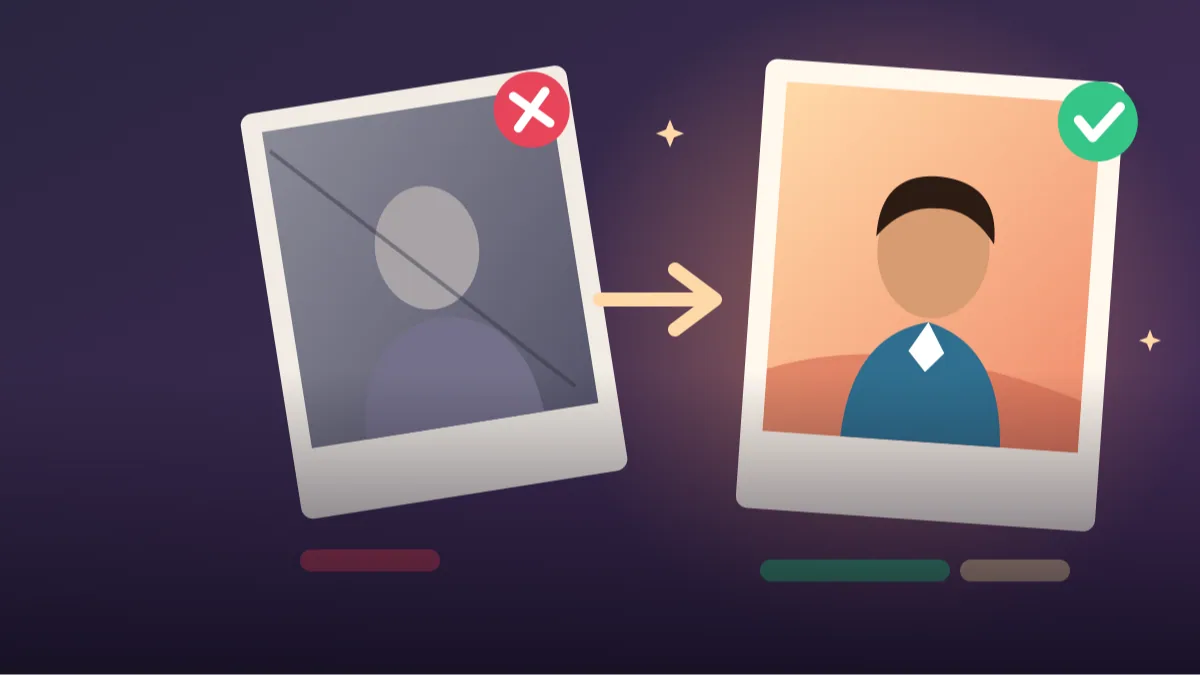
Everyone makes the same few ai prompt mistakes at the start. It happens to nearly everyone. You write something short and exciting, hit send, and the result has glossy skin, six fingers and a background that looks like a melted postcard. The good news is that these problems have simple fixes.
Below are eight mistakes that come up again and again in photo prompts. For each one you get a 'fixed' version of the prompt that you can copy. They all assume you attach your own photo and ask for your face to stay unchanged.
A reminder before we begin: even a perfect prompt can fail on the first try, because image tools vary from run to run. Think of fixing prompts as a calm back-and-forth, not a one-shot exam.
- Copy-Paste Prompts
- Is it the app or is it me? Why most ai prompt mistakes are fixable
- The one-minute checklist before you press send
- What if Gemini or ChatGPT still ignores a line of my prompt?
- Plastic skin and carved faces: the ai prompt mistakes behind them
- Ten retries later: when to stop prompting and open a photo editor
- Worked example: one bad prompt, three small fixes
- How to read a bad result: match the symptom to the cause
- Hands, background and text: the three places AI struggles most
- Honest limits: when the problem is not your prompt
- FAQs
Copy-Paste Prompts: Ai Prompt Mistakes (8 Ready Ideas)
1. Fix 1: Vague Beauty Words
SUBJECT: Use my uploaded photo, face unchanged, head and shoulders
OUTFIT: [colour] shirt
SETTING: soft grey studio wall
LIGHT: soft window light from the left
CAMERA: 85mm lens, f/2.8
STYLE: natural photograph with visible skin texture and small imperfections
SKIN: keep pores, fine lines, under-eye texture and a slight natural shine on the forehead
EXPRESSION: relaxed, calm eyes, a small natural smile
AVOID: perfect skin, glossy face, beauty filter look
Replace 'stunning, flawless, amazing' with real photographic details. The model cannot picture an adjective.
2. Fix 2: Too Many Styles
SUBJECT: Face unchanged from my attached photo, half-body portrait
OUTFIT: dark jacket and white tee
SETTING: quiet street at dusk
LIGHT: warm shop-window glow
CAMERA: 35mm lens, f/2
STYLE: one style only: soft cinematic realism, muted colours
GRADE: gentle teal shadows, warm skin, light film grain, no heavy filters
POSE: walking slowly, looking slightly past the camera
AVOID: cartoon look, painting texture, anime shading, extra effects
If your old prompt said cinematic, anime, vintage and hyper-real, pick just one and say so.
3. Fix 3: Missing Face Instruction
Use my attached photo as the face reference. The person in the result must have my exact face, hair and skin tone. Change only the outfit to a [colour] [garment] and the background to [simple location]. Keep my natural expression. Soft daylight, 50mm lens, realistic photo. Do not make me younger or slimmer.
If the picture looks like a stranger, you probably never said the face must stay. Say it, and say what not to change.
4. Fix 4: Hands and Fingers
SUBJECT: Face unchanged from my uploaded photo, standing with both hands resting naturally in pockets
OUTFIT: olive jacket
SETTING: simple city wall
LIGHT: soft overcast daylight
CAMERA: 50mm lens, f/4
STYLE: realistic lifestyle photograph
POSE: thumbs just visible at the pocket edge, shoulders relaxed, weight on one leg
COMPOSITION: knee-up framing, subject slightly off-centre
AVOID: extra fingers, merged fingers, visible hands holding objects
The easiest fix for odd hands is to hide them or give them a simple job such as resting in pockets.
5. Fix 5: Background Chaos
SUBJECT: Use my photo, face unchanged, shoulders-up
OUTFIT: navy blazer
SETTING: one clean element only: a plain light-beige wall with a soft shadow, nothing else
LIGHT: even soft light from the front-left
CAMERA: 85mm lens, f/2.5
STYLE: calm professional photo
POSE: square to the camera, shoulders relaxed, slight smile
BACKGROUND: smooth and out of focus, same beige tone across the whole frame
AVOID: furniture, windows, patterns, text, extra people
A long scene list causes clutter. Start with a plain background, then add one object at a time.
6. Fix 6: Contradicting Instructions
SUBJECT: Face unchanged from the attached photo, outdoors in morning sun
OUTFIT: white linen shirt
SETTING: quiet beach path, soft haze
LIGHT: single consistent source: low morning sun from the right
CAMERA: 50mm lens, f/2.2
STYLE: bright, airy, natural
SHADOWS: one soft shadow falling to the left on the sand, matching the sun position
POSE: walking toward the camera, relaxed arms
AVOID: night sky, studio lights, second light source, neon colours
Do not ask for sunrise and neon night in one prompt. One scene, one light, one mood.
7. Fix 7: Unreadable Text and Logos
SUBJECT: Face unchanged from my uploaded photo, standing near a shop front
OUTFIT: plain t-shirt with no print
SETTING: shop front with blank blurred signboards
LIGHT: soft daylight
CAMERA: 35mm lens, f/4
STYLE: natural street photo
POSE: standing relaxed with hands in pockets, a slight smile
BACKGROUND: shutters and boards in solid muted colours, softly blurred
AVOID: any letters, numbers, brand marks, signs with readable words, text on clothing, posters
Generated text is often garbled. Ask for blank signs, and add real text later in a design app.
8. Fix 8: One Giant Rewrite Every Time
The image is almost right. Keep everything the same: face, outfit, pose, background, camera angle. Change only one thing: make the light softer and slightly warmer, as if from a window on the left. Do not change the colour of the clothes, the expression, the hairstyle or the framing. Just soften the shadows on the face and keep the rest identical to the previous image.
Use small follow-up edits inside the same chat. Rewriting from scratch throws away what already worked.
Is it the app or is it me? Why most ai prompt mistakes are fixable
When a photo looks fake, our first instinct is to blame the app. But in most cases the prompt left gaps, and the AI filled them with its default taste: glossy, symmetrical, over-lit. Filling the gaps yourself is how you take back control.
If your ai photo prompt not working problem feels random, look for three culprits: vague words, too many instructions, or no face instruction.
Take a simple example. 'Make me look good in a nice place' leaves the AI to decide what good means, what nice means and which place. It will pick the most average answer, which is usually a shiny face in a generic park. 'Natural skin, soft evening light from the left, plain brick wall behind me' leaves nothing to guess. The second prompt is not longer because it is fancy; it is longer because it replaces opinions with facts. A good habit is to read your prompt and ask: could two different people draw something very different from this? If yes, add a detail.
The one-minute checklist before you press send
Read your prompt once, slowly, and tick the boxes below. It takes under a minute and saves several retries. Keep this list in your phone notes and run through it every time you paste a new prompt, even one you copied from a blog.
- Is the face instruction there?
- Is there exactly one main style?
- Is the light described by direction and softness?
- Is the background simple enough?
- Do the hands have an easy job?
- Does the AVOID line name real problems?
What if Gemini or ChatGPT still ignores a line of my prompt?
Attach your photo first. Paste a fixed prompt, fill the brackets and send. If the picture improves but is still off, reply with one specific correction. Short, calm follow-ups usually work better than long angry paragraphs.
Both tools sometimes ignore a line. If that happens, move the ignored instruction to the first sentence and repeat it once at the end.
Another reason a line gets ignored is that it fights with another line. If you wrote 'natural look' and also 'dramatic cinematic glow', the tool has to pick one. Read your prompt as a stranger would and delete whichever instruction matters less. Also watch for negative phrasing: 'no sunglasses' sometimes produces sunglasses, because the word itself is in the prompt. Try the positive version, like 'bare eyes, clearly visible', and compare.
Plastic skin and carved faces: the ai prompt mistakes behind them
Plastic skin comes from words like 'flawless', 'smooth' and 'HD'. Replace them with 'natural skin texture, visible pores, soft highlights'. This simple fix plastic skin ai trick changes a lot.
Also lower the resolution words. Skip '8K ultra sharp' and say 'natural detail'. Over-sharpening makes faces look carved.
Think about how a real phone photo looks: a bit of shine on the nose and forehead, small marks, slightly uneven colour near the eyes. When the AI removes all of that, the face feels like a mannequin. Adding 'light film grain' or 'soft natural shadows under the eyes' often brings a human feel back. If the skin tone has drifted lighter or darker than yours, say 'match the skin tone of my attached photo exactly', since many tools quietly brighten faces.
Ten retries later: when to stop prompting and open a photo editor
Sometimes the AI is ninety percent there. Crop, adjust brightness or add text in a normal editor rather than burning ten more attempts. It saves time and keeps your best face result untouched.
Free apps like Snapseed or Canva handle most last-mile jobs: straightening a tilted horizon, brightening a dark face, removing a stray object, or adding a caption. A useful rule is to ask whether the problem is the whole picture or one small spot. A whole-picture problem like wrong pose or wrong light needs a new prompt. A one-spot problem like a stray finger, a bright corner or a spelling mistake is faster to fix by hand. Save the version you like before any further editing, so you can always go back.
Worked example: one bad prompt, three small fixes
Here is the kind of prompt many beginners write on a lazy evening: 'Make me look stunning and cinematic, anime and realistic, on a beach at night with neon and sunrise, perfect hands, 8K'. Let us fix it slowly instead of rewriting everything.
First fix, the adjectives. 'Stunning' and '8K' mean nothing to a camera, so remove them and add real details: 'soft low sun from the right, 50mm lens, natural skin texture'. Second fix, the clash. Anime and realistic cannot live in one picture, and night with sunrise is impossible. Choose 'realistic, early morning, quiet beach'. Third fix, the face. Add 'use my attached photo, keep my exact face, hair and skin tone'.
The new prompt is shorter, calmer and much more likely to work. Notice that we did not add anything fancy. We removed noise and added three facts a photographer would actually use. This is the pattern behind almost every successful rewrite, whatever the topic.
How to read a bad result: match the symptom to the cause
Every failed image is telling you something. If the face is a stranger, the face line is missing or too weak. If the skin shines like plastic, you used polish words. If the picture feels crowded, too many objects were listed. If the colours look electric, you asked for several moods at once. If letters on signs look like alien writing, you allowed text in the scene.
Use this as a small diagnosis table before you retry. Change only the line that matches the symptom, keep the rest of the prompt the same, and compare the new image with the old one. If you change five things together, you cannot learn what helped, and you will repeat the mistake next week.
- Stranger's face: add a strong face line and say what must not change
- Plastic skin: remove flawless, smooth and HD, add natural texture
- Cluttered scene: cut the object list to one or two items
- Electric colours: name one palette and one light source
- Garbled text: ask for blank signs and add words later
Hands, background and text: the three places AI struggles most
Hands are made of many small moving parts, so tools often miscount fingers or merge them with objects. Besides hiding hands, you can give them a simple job: one hand on a bag strap, one around a cup, both on a table. Avoid poses with interlocked fingers, a hand holding a phone and a cup together, or a wave close to the lens.
Backgrounds go wrong when we describe a whole place. The tool tries to include every item and the picture looks packed. Describe the one thing that matters, such as a plain wall, a green hedge or a blurred street, and add a second object only after the first version works.
Text is the third trouble spot. Letters on shirts, signs, books and phone screens are usually wrong. If you need words, plan them for the end: generate the image, then add your caption, name or date in a normal design app where spelling is under your control.
Honest limits: when the problem is not your prompt
Sometimes you do everything right and a result still fails. Tools update, rules change and the same prompt can behave differently a month later. Some requests, such as exact likeness of a particular person or complex group scenes, are simply difficult. A fresh chat, a clearer source photo or a different tool may help more than extra words.
Please also remember the boundaries we follow in every guide: use your own photo, do not try to copy a celebrity or a brand, and say that an image is AI-made when you share it. Fixing a prompt is about getting a respectful, believable picture, not about fooling anybody.
Frequently Asked Questions
Why does my AI photo look so fake?
Usually because of vague beauty words, a hard flash-like light and no mention of natural skin texture. Describe real light and texture instead, and avoid words like flawless.
How do I stop extra fingers?
Hide the hands or give them a simple pose such as resting in pockets or holding a bag strap. Add 'five fingers on each hand' to the AVOID line and retry.
Should I make my prompt longer when it fails?
Not always. Past about ninety words, instructions start to clash. Fix one problem at a time instead of adding more text.
Is it normal to need several tries?
Yes. AI image tools produce different results each time, so two or three attempts per idea is normal even with a good prompt.
Do these ai prompt mistakes apply to Gemini and ChatGPT both?
Yes, they show up in both. The fixes are about clear wording, so they travel well between tools.
Final Thoughts
Nearly all ai prompt mistakes boil down to the same thing: we leave too much to guesswork. Be specific, be calm, and change one thing at a time. The eight rewrites above are a good starting set to keep in your notes.
Open your last disappointing prompt, match it to one of these fixes and run it again with your own photo. When the basics feel steady, practise on a simple scene such as our minimal studio portraits or golden hour prompts, where a mistake is easy to spot.
Note: AI image and text results vary by tool, version and settings. Use only your own photos, avoid copying real people’s likeness, and follow the terms of the AI tool you use.