ChatGPT Old Photo Restoration Prompts
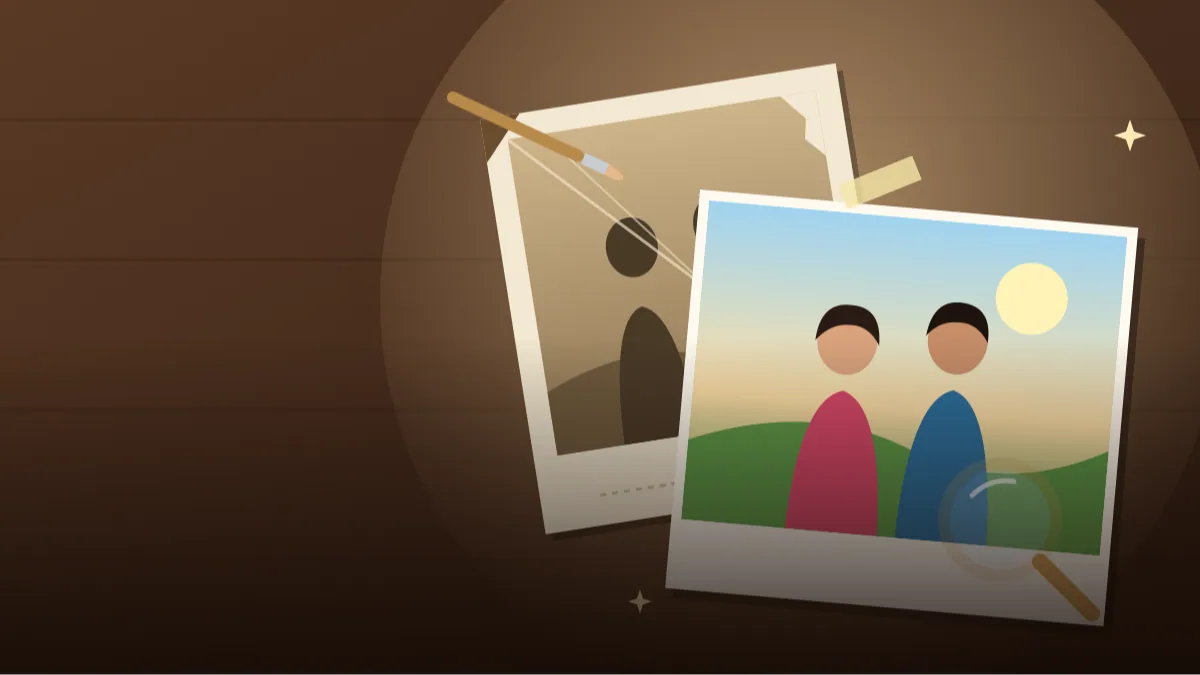 CHATGPT PROMPTSOLD PHOTO RESTORATION8 COPY-PASTE PROMPTS
Almost every home has an old album with fading pictures of grandparents, weddings or school days. A careful photo restoration prompt can clean scratches, even out the tones and sharpen what is already there, without turning your family into strangers.
The golden rule is restraint. Ask ChatGPT to repair damage and keep every face as it is. AI can accidentally invent details, so always compare the result with the original before you call it done.
Scan or photograph your print flat in good light first. A clear starting image gives far better results.
- Copy-Paste Prompts
- Scanner or phone: how should I capture the print before a photo restoration prompt?
- Is an AI-restored photo still a true record of my family?
- Dada looks like a wax doll now: fixing over-smoothed faces and wrong colours
- Where should I print, share and store the restored copy?
- Eyes, teeth, fabric and grain: what to check at full size
- Scratches, creases or a torn corner: which damage is easy to repair with a photo restoration prompt?
- Restoring a 1970s wedding portrait, one message at a time
- FAQs
Copy-Paste Prompts: Photo Restoration Prompt (8 Ready Ideas)
1. Gentle general restore
Restore the attached old photograph.
FIX: Remove dust, scratches, creases and stains.
TONE: Even out fading, recover natural contrast without making it harsh.
FACES: Keep all faces exactly as they are; do not beautify or reshape.
DETAIL: Sharpen lightly, keep film grain.
COLOUR: Keep the original black and white or sepia.
AVOID: Adding people, objects or text.
Start with this one. It makes the safest, most faithful repair.
2. Tear and fold repair
The attached photo has a tear and fold lines running across it.
REPAIR: Rebuild the missing paper area using only the surrounding patterns, walls and clothing textures.
FOLD LINES: Smooth them away without softening any face.
FACES AND CLOTHES: Keep exactly as photographed, including jewellery and hair.
BACKGROUND: Continue existing textures logically.
AVOID: Inventing new people or objects, changing expressions, adding text.
Torn areas through faces are risky. Check carefully and be honest that those parts are reconstructions.
3. Faded colour revival
The attached colour photo from the 1980s has faded to an orange tint.
FIX: Correct the colour cast, restore natural skin tones and balanced whites.
SATURATION: Moderate and true to the era, not modern vivid.
DETAIL: Recover shadow detail gently, keep the soft film look.
KEEP: Faces, clothes and background objects the same.
AVOID: Over-sharpening, plastic skin, changed expressions.
Color-cast problems are one of the easiest fixes. Aim for natural, not modern.
4. Add natural colour
Colourise the attached black and white family photo.
SKIN: Natural varied tones that suit the people in it.
CLOTHES: Muted realistic colours; I will tell you if I know the real colours.
BACKGROUND: Soft natural greens and neutral walls.
KEEP: Faces, poses, hair and small details unchanged.
AVOID: Bright unrealistic colours, adding or removing anything.
Colour is an interpretation. If you remember a real colour, mention it, such as 'her saree was maroon'.
5. Sharpen a blurry print
The attached photo is slightly blurry and soft.
TASK: Improve clarity gently, especially the eyes, hair edges and clothing patterns.
FACES: Do not change structure, expression or apparent age.
NOISE: Reduce noise but keep a hint of the original grain.
OUTPUT: Higher resolution version, same framing.
AVOID: Plastic skin, invented teeth or jewellery, added text.
'Do not change age or expression' prevents the common over-smoothed look.
6. Group photo restore
Restore the attached old group photograph.
PEOPLE: Keep every person's face, position and clothing unchanged.
FIX: Remove stains and scratches, balance exposure across the whole group.
BACKGROUND: Clean up marks but keep the original setting and furniture.
TONE: Natural monochrome with fine grain.
AVOID: Adding or removing anyone, swapping faces, text.
Group faces are small. If one face looks off, crop and restore it separately.
7. Sepia warmth recovery
The attached sepia studio portrait has yellow stains and low contrast.
FIX: Remove yellow blotches and edge damage.
TONE: Return to a clean warm sepia with deeper blacks.
DETAIL: Keep fabric and jewellery details as they are.
FACE: Unchanged.
FRAME: Keep the original border style.
AVOID: Colourising, modern effects, text.
Studio portraits restore well because they are simple and well lit.
8. Passport-style cleanup
Clean up the attached small old ID-style photo for a memorial frame.
FIX: Remove creases, dust and ink marks, even the background to a soft neutral grey.
FACE AND CLOTHES: Keep exactly the same, including collar, hair parting and any jewellery.
CROP: Head and shoulders, centred, equal margins.
RESOLUTION: Upscale carefully with natural skin texture.
AVOID: Adding a smile, changing the eyes, text.
Frame-ready crops are a lovely keepsake. Always keep expressions authentic.
Scanner or phone: how should I capture the print before a photo restoration prompt?
Scan the picture on a flat-bed scanner or photograph it in soft daylight without glare. Upload it to ChatGPT, paste the prompt and send.
Check the result at full size and compare it side by side with the original before saving or printing.
No scanner at home? A phone works if you are careful. Lay the print on a plain table near a window, switch off the flash, and stand directly above it so the edges stay square. Tilting the phone gives a trapezoid picture and reflections from glossy paper. Take three shots and pick the sharpest one. Fingerprints and dust on the print show up as spots, so wipe it gently with a dry soft cloth first, and never use water on an old photograph.
Crop away the table and album pages before you upload, so the AI spends its effort on the picture and not on the background. If the print is mounted in an album with a sticky page, do not peel it just for a better scan; photograph it in place and fix the rest with the restore prompt.
Is an AI-restored photo still a true record of my family?
Honesty matters, especially for family history. AI fills gaps by guessing, so keep the original file safe.
Think of the restored copy as a careful drawing made from the original, not the original itself. Where the print is clear, the result is usually trustworthy. Where it is cracked, faded or missing, the model is making a reasonable guess, and a guess can be wrong. That matters for faces most of all. Your dada might have had a slightly crooked smile or a particular moustache shape that a smoothing filter erases.
A good family habit is to ask an elder to look at the restored copy and say 'yes, that is him' before you print it. If an older relative frowns, trust the frown and go back to a gentler prompt.
- Save the untouched scan.
- Restore in stages: repair first, colour later.
- Zoom into eyes, hands and jewellery.
- Mention any known details such as colours.
- Label AI-restored versions so relatives know.
Dada looks like a wax doll now: fixing over-smoothed faces and wrong colours
Over-smoothing faces is the biggest problem. Ask for 'keep skin texture and natural wrinkles'. Another is over-colourising; request muted tones.
If the AI changes someone's look, restore that person separately and try a lighter instruction.
A softer wording usually helps more than a stronger one. Instead of 'enhance and sharpen', try 'repair scratches and stains only, do not change the face, keep the original sharpness'. If a group photo has one face that came out wrong, crop that face, restore it alone with the original beside it, and paste it back into the group in any editing app.
Colour is another trap. Skin tones from guesswork often turn orange or grey, and old clothes become odd shades. Name the colours you actually remember, like 'dark green saree, cream shirt', and ask for 'muted, slightly faded colours, not bright'. If you do not know the colour, leave the picture in black and white; that is a perfectly respectable restoration.
Where should I print, share and store the restored copy?
Print on good paper, make a digital album, or create a short slideshow for family events. A tidy restore old family photo with chatgpt workflow can also help you digitise a whole album in an evening.
Always keep the original scan and the restored version together with a note of what was edited.
For printing, a local photo studio can print 5x7 or 8x10 inches on matte or semi-gloss paper at a reasonable cost; ask for the original file size to be kept and do not let the shop auto-enhance it, because their software may smooth the faces again. For sharing with relatives, send a WhatsApp 'document' file, not a normal photo, so the app does not compress it.
For storage, keep two copies on two different places, such as your phone and a Google Drive folder, and name them clearly: 'dada-dadi-wedding-1972-original-scan' and 'dada-dadi-wedding-1972-ai-restored'. In twenty years, that tiny habit will save someone a lot of confusion.
Eyes, teeth, fabric and grain: what to check at full size
Before you save anything, open the result at full size and look at the places where AI usually slips. Start with the eyes: are both pupils the same shape and size as in the original, or has ChatGPT made them a little rounder or brighter? Then check teeth, because a closed mouth sometimes turns into a faint smile. Look at hair edges, where soft grain can be replaced by a painted, wax-like outline.
Next, look at fabric and jewellery. A bordered saree, a pattern on a shirt, a thin gold chain: these tiny details are easy for the model to smooth into nothing or to redraw differently. If a checked shirt becomes plain, or a bangle becomes two bangles, the repair has gone too far. Flip between original and restored a few times, like checking spot-the-difference in a magazine.
Finally, judge the grain. Real film has a fine texture that makes a picture feel old and honest. A good old photo fix chatgpt result keeps a little of it. If the skin looks like polished plastic, run the prompt again and add the line 'keep film grain and natural skin texture, do not smooth'.
Scratches, creases or a torn corner: which damage is easy to repair with a photo restoration prompt?
Not every old photo is equally hard. Dust spots, fine scratches, mild fading and yellow stains are usually quick wins, and the gentle general restore prompt handles them in one go. Orange colour casts on 1980s prints are also friendly, because the information is still there, just tinted.
Harder cases are deep creases that run through a face, water damage that has eaten away part of the picture, and prints where someone has scribbled with a pen. For these, work in small steps. Crop to the damaged area, restore only that piece, then place the result back. If you want to repair torn photograph with ai, it also helps to tell ChatGPT what should be there, for example 'the missing corner is plain wall, no new objects'.
Be honest with yourself about faces. If the tear passes through an eye or a mouth, the AI is inventing that part. It may look convincing, but it is a guess. For a memorial photo of a loved one, keep the damaged original beside the restored one, so nobody mistakes a guess for a memory.
Restoring a 1970s wedding portrait, one message at a time
Say your grandparents' wedding picture is a small black and white print with a crease across the lower half and a brown stain near the top corner. Scan it flat at 600 dpi, and crop away the table around it.
Start with the gentle general restore. Add one extra line at the end: 'The stain is in the top right corner, the crease crosses the saree; keep the flowers in her hair exactly as they are.' This tells ChatGPT where to focus and what to protect. Check the result. If the crease is gone but her face looks too soft, send a second message such as 'Same image, but restore skin detail around the eyes and nose, keep natural lines'.
Only after you are happy should you try a colourise black and white photo prompt. Mention what you know: 'her saree was deep red, his turban cream, the garland marigold'. Saving each stage as its own file gives you a trail you can go back to. Many families like to print the black and white repair for the wall and keep the coloured version for the phone.
Frequently Asked Questions
Can ChatGPT restore very damaged photos?
It can help with scratches, fading and small tears, but heavy damage means it guesses missing areas. Treat those parts as reconstructions.
Will faces stay accurate?
Usually close, but small changes can happen. Ask to keep faces unchanged and compare with the original.
Is colourising accurate?
No, it is an educated guess. Share any colours you know to improve the result.
What resolution should I scan at?
Around 600 dpi for small prints gives plenty of detail. Higher is unnecessary for most family photos.
Should I delete the original?
No. Keep the untouched scan forever; it is the true record.
Can I restore a photo my relative sent on WhatsApp?
You can, but WhatsApp squeezes pictures, so there is less detail to rescue. Ask for the original file by email or Drive, or photograph the print again yourself. A better starting file always gives a more faithful enhance faded photo prompt result, and it saves you several retries.
Should I tell relatives the photo was restored with AI?
Yes, a simple note is kind and honest. Write 'AI-restored, original scan kept' on the back of the print or in the file name, so future generations know which version is the true record.
Final Thoughts
A careful photo restoration prompt respects the people in the picture: repair damage, protect faces and keep the original safe. Start with the gentle restore, then add colour only if you want it.
Pick one picture today, maybe the oldest one in your album, and run the gentle restore on it first. If it works well, realistic portrait prompts are a good next read for modern photos.
Note: AI image and text results vary by tool, version and settings. Use only your own photos, avoid copying real people’s likeness, and follow the terms of the AI tool you use.